
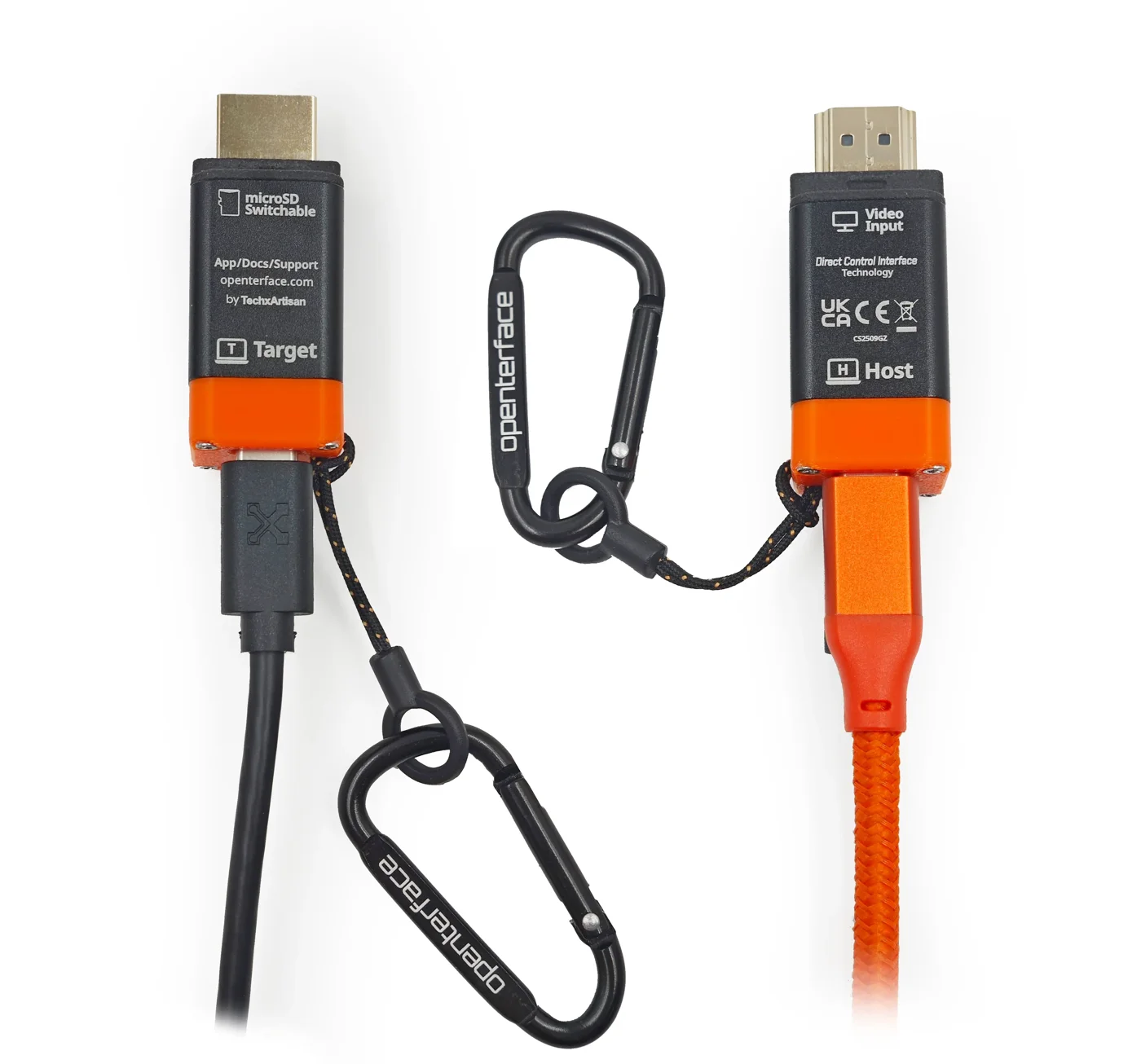
The short answer
A compatible KVM-over-USB console can show a headless computer’s BIOS/UEFI or boot menu on your laptop, without relying on the target’s network or operating system. The target must output its firmware display through the connected video port and accept USB keyboard input at that stage.
Before you start
- Check the target’s documentation for the BIOS/UEFI or boot-menu key. It may be Delete, F2, F12 or another key.
- Match KVM-GO to a supported target video output; identify which port carries pre-boot video.
- Install the compatible app on your laptop in advance.
- Connect both host and target USB links using data-capable cables where required.
- Keep the target powered and make sure any restart is appropriate for its workload.
On a machine with several graphics outputs, a port used by the operating system may not be the one used during firmware startup. Consult the target manufacturer’s documentation.
If you get no picture or no keyboard response
No picture: check target power, the video connector, the host data cable and device selection. The target may not be emitting video on that port, or its current signal may be unsupported.
Picture but no keyboard response: check the target USB cable and port, app focus, and whether the firmware accepts USB input. Try the target manufacturer’s recommended USB port and consult its manual.
Operating-system display works, BIOS does not: investigate pre-boot output and firmware behaviour. Do not assume the operating-system video configuration also applies during startup.
Local access or remote management?
When you are next to the computer, a portable USB console can avoid bringing a separate monitor and keyboard. When you need to reach an unattended machine from another location, investigate a suitable KVM-over-IP device or built-in server management instead.
SSH and remote desktop normally depend on services being available on the target. They do not generally provide motherboard BIOS access. Read our comparison guide to choose the right approach.