
The short answer
Yes, with a suitable KVM-over-USB device and host app, you can use a laptop to view and control another computer nearby. Plugging the two computers together with a normal HDMI cable usually will not work: most laptops have an HDMI output, not a video input.
Openterface KVM-GO captures the target computer’s video output and carries keyboard and mouse input back over USB. Your laptop becomes the local console. The target does not need an installed remote-control app.
When a local console helps
Consider a headless mini PC on your workbench. You need to see its initial boot screen or installer, but you do not have a spare monitor and keyboard. A compatible laptop, KVM-GO and the right cables provide a temporary console.
The same approach can help on an IT support visit where the machine is physically accessible but network access is unavailable. If the target already has working remote desktop or SSH access and you only need its operating system, that existing connection may be enough.
What you need
- A laptop with a supported Openterface host app.
- A KVM-GO that matches the target’s video output.
- A USB port on the target that accepts keyboard and mouse input, and a USB port on the laptop for the host connection.
- Two data-capable USB cables and power for the target computer.
Download the host app before an offline visit. If your target has HDMI output, see the KVM-GO HDMI Toolkit. For mixed equipment, compare UK KVM-GO kits.
How the three devices connect
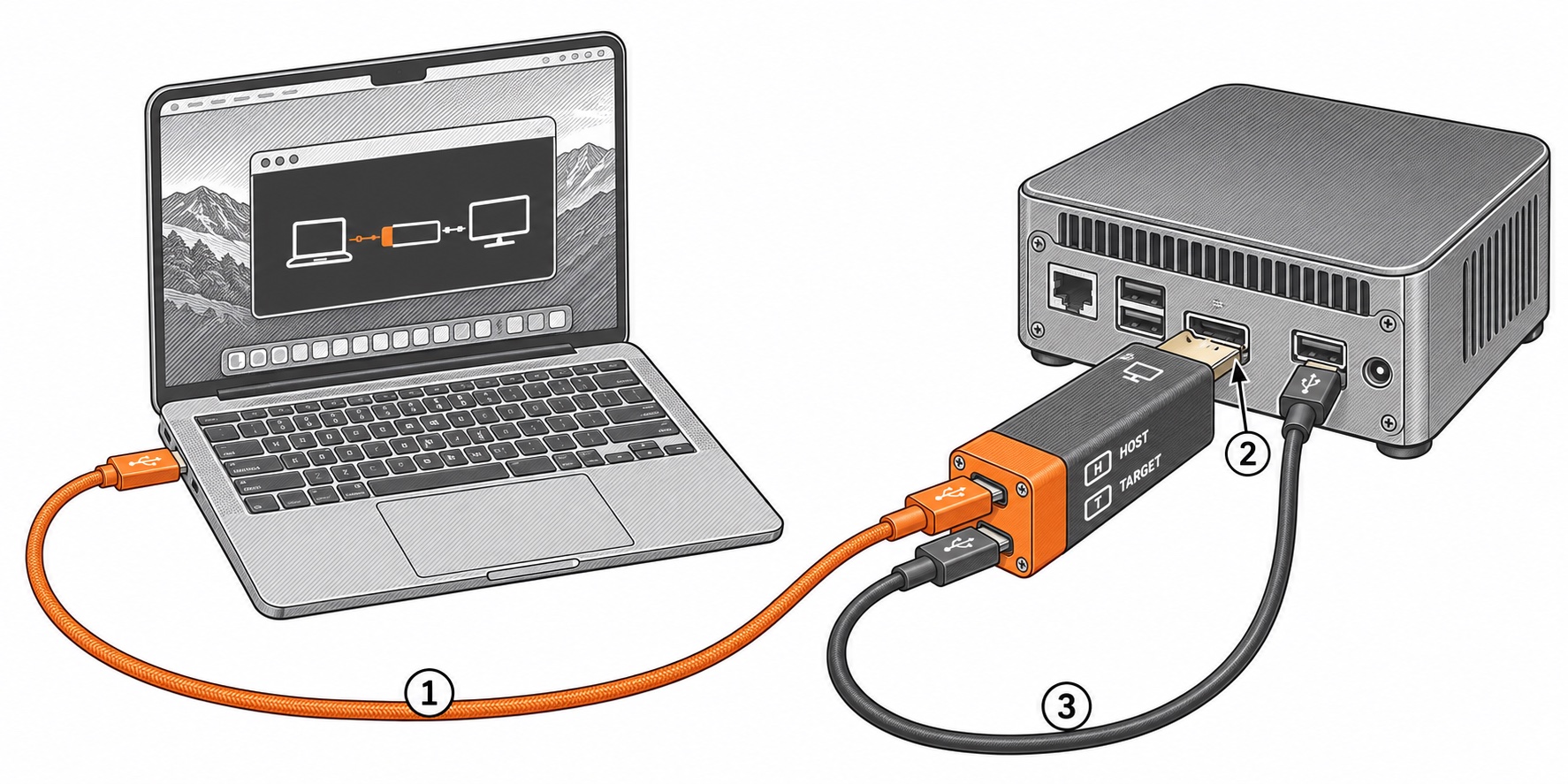
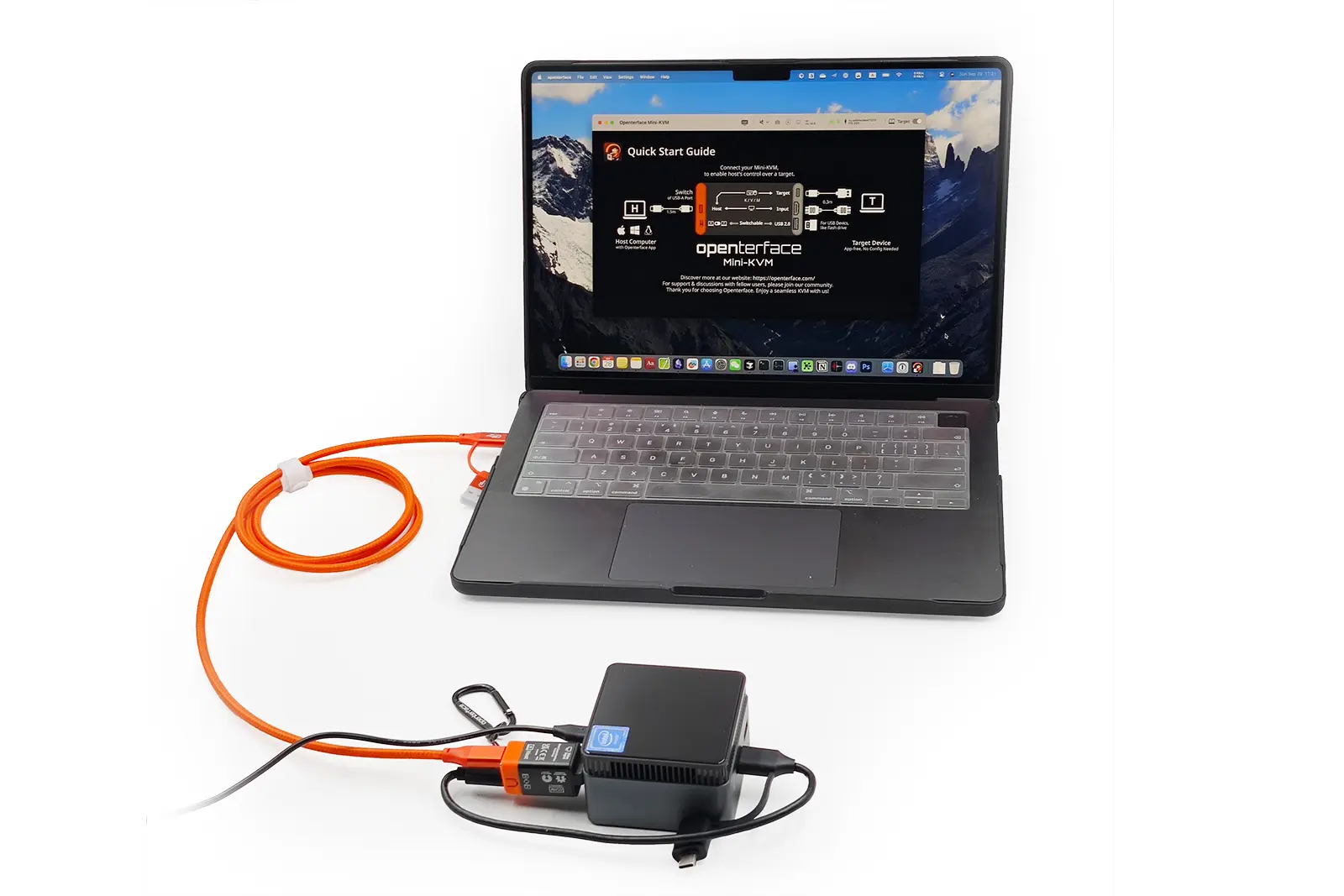
Example setup with the HDMI KVM-GO
- Host USB. The orange data cable connects the KVM-GO’s Host port to the laptop running the Openterface app. It carries video to the laptop and keyboard and mouse commands back to KVM-GO.
- Target video. The KVM-GO’s built-in HDMI plug goes directly into the target PC’s HDMI output. The DisplayPort and VGA models plug into their matching outputs.
- Target USB. The black data cable connects the KVM-GO’s Target port to a USB port on the target PC. It delivers keyboard and mouse input to that PC.
For port close-ups and step-by-step instructions, follow the official KVM-GO connection guide (opens in a new tab).
Troubleshooting video and control
Picture but no keyboard or mouse: check that the Target port connects to the target PC with a data-capable cable. Click inside the target view in the host app and try again. If input fails only at startup, check whether that USB port accepts keyboard input before the operating system loads.
No picture or control: check target power, the video connection, the host data cable and the app’s device selection and permissions.
Other routes may suit your task
Remote desktop can be convenient once the target’s network and operating system are running. SSH is often enough for text-based administration. A capture card can show video, but a typical capture-only device does not send keyboard and mouse input back to the target.
For a console you can use before the operating system starts, read our headless PC BIOS guide. For a broader choice, see the KVM category comparison.